
Framer is an incredible design-and-publish platform. But its hosting model has real costs: monthly fees per site, a “Made in Framer” badge you can't remove on the free plan, and no path to deploying on your own infrastructure.
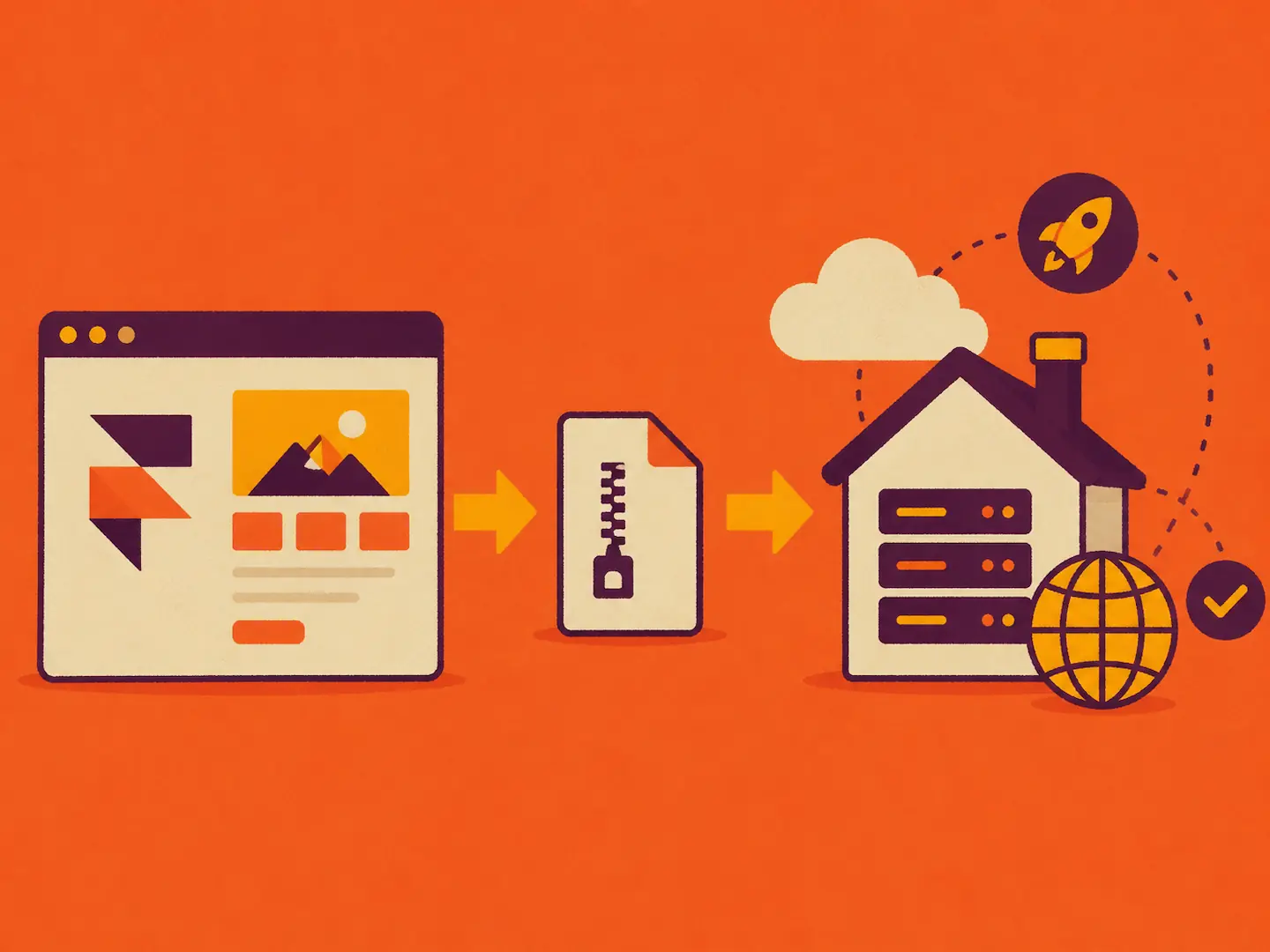
Self-hosting solves all three. You design in Framer, export to static HTML/CSS/JS, and deploy wherever you want.
This guide covers the full 2026 workflow: what the export process actually looks like, which hosts work best, what breaks and what doesn't, and how to handle forms, analytics, and SEO once you're running on your own stack.
The Quick Answer
Yes, you can self-host a Framer site. Framer doesn't offer a native export option — their official position is that Framer sites aren't static and can't be exported for self-hosting. In practice, a purpose-built tool handles the conversion cleanly. Here's the workflow:
Publish your site in Framer — this generates a live Framer URL
Paste that URL into PullPage to generate a static HTML/CSS/JS export
Download the ZIP or sync directly to GitHub
Deploy to Netlify, Vercel, Cloudflare Pages, GitHub Pages, or your own server
That's the full loop. Now let's walk through each step with the specifics that actually matter.
Why Self-Host a Framer Site?
There are three distinct reasons people pursue this, and they're worth separating.
Avoiding Framer's Hosting Fees
Framer charges per site. If you're an agency managing 10, 20, or 50 client sites, those fees compound fast. Self-hosting on Cloudflare Pages or Netlify costs a fraction of that — and the free tiers on both platforms are generous enough to cover most projects. For a detailed breakdown of where the costs stack up, see Framer Hosting Costs in 2026: What You're Actually Paying (And How to Cut It).
Removing the “Made in Framer” Watermark
The badge appears on every site published through Framer's free plan. Clients expect clean, professional output. A watermark undermines that. When you export and self-host, it's stripped from the output entirely — no manual HTML editing required. You can also remove it by upgrading to a paid Framer plan, but for agencies managing multiple sites, the export route is significantly cheaper. The full comparison is covered in How to Remove the 'Made in Framer' Watermark in 2026.
Full Infrastructure Control
Some clients require hosting on specific servers, regions, or providers for compliance reasons. Others want to integrate their site into an existing CI/CD pipeline. Framer's hosted environment doesn't accommodate either. A static export does.
What “Self-Hosting a Framer Site” Actually Means
Worth clarifying before going further, because “self-hosting” means different things depending on who you ask.
It does not mean running a Framer server. Framer is a proprietary platform. You can't clone its backend or run it locally.
It means exporting your site as static files — HTML, CSS, JavaScript, and assets — and serving those files from any host you choose. The output is a standard static site. No Framer dependency, no watermark, no monthly fee tied to Framer's platform.
The catch: Framer doesn't offer a native export button. You need a tool purpose-built for this.
How to Export Your Framer Site for Self-Hosting
Step 1: Publish Your Site in Framer
Your site needs to be published before you can export it. Framer generates a live URL — typically on a .framer.website subdomain. Copy that URL.
You don't need a custom domain configured in Framer. The published URL is enough, and it works even on Framer's free plan.
Step 2: Generate the Static Export with PullPage
PullPage is purpose-built for this. Paste your published Framer URL, and it generates a static export in roughly 24 seconds.
What the export includes:
All HTML pages, including multi-page sites and CMS content
CSS and JavaScript files
Fonts, images, videos, 3D models, and other local assets (paid plans)
SEO metadata, sitemaps, and rewritten asset paths (paid plans)
Framer Motion animations, hover states, and scroll transitions — preserved
The “Made in Framer” badge and Framer editor scripts are automatically removed.
For a full comparison of available export tools, see Best Framer Export Tools in 2026: 7 Tools Tested.
Step 3: Download the ZIP or Sync to GitHub
On the free plan, you get a downloadable ZIP. On paid plans, you can configure GitHub Sync, which commits the export directly to a repository. Connect that repo to Netlify, Vercel, or Cloudflare Pages and you get automatic redeployment every time you re-export.
For agencies running client sites, GitHub Sync is the right workflow. Update in Framer, re-export, push to the repo, and the host redeploys automatically.
Choosing a Host for Your Exported Framer Site
The export is a standard static site. Any host that serves static files works. In practice, a few stand out.
Netlify
Strong free tier, instant deploys from GitHub, automatic HTTPS, and solid edge performance. The drag-and-drop deploy works if you're not using GitHub Sync — just drop your ZIP folder. Netlify also handles redirects and custom headers via a netlify.toml file, which is useful for managing SEO redirects after migration. The free tier includes 100 GB bandwidth per month.
Vercel
Similar to Netlify in capability. Slightly better developer experience if you're already in a JavaScript-heavy workflow. Free tier is generous for personal and client projects.
Cloudflare Pages
Best raw performance for globally distributed sites. Cloudflare's edge network means fast load times regardless of visitor location, and the free tier includes unlimited bandwidth. If Core Web Vitals matter to your client, Cloudflare Pages is worth the slightly steeper initial configuration.
GitHub Pages
Free, simple, and works well for portfolios and small sites. Note that GitHub Pages supports one user/organization site per account plus one project site per repository — so multiple sites are possible, but it lacks advanced redirect control and custom response headers. Fine for personal use — not ideal for client work.
Your Own Server
If you're deploying to a VPS or on-premise server, you're serving static files via Nginx or Apache. This is the most flexible option and the one compliance-sensitive clients typically require. The export ZIP contains everything you need to drop into a web root.
What Works and What Doesn't After Self-Hosting
Most guides skip this part. Here's the honest answer on what carries over and what needs extra work.
What Works
All visual design and layout — HTML and CSS export cleanly
Framer Motion animations — hover effects, scroll transitions, and motion animations are preserved in the static output
Multi-page navigation — internal links work correctly across pages
SEO metadata — titles, descriptions, Open Graph tags, and sitemaps export intact on paid plans
Custom fonts — bundled as local files on paid plans, so no dependency on Framer's CDN
What Requires Extra Configuration
Forms. Framer's native form component doesn't function in a static export — it relies on Framer's backend. You need a third-party form handler. Static Forms is a practical option: it provides a backend endpoint for form submissions without requiring server-side code or a database on your end. Update the form's action attribute to point to the Static Forms endpoint and submissions route correctly. Formspree and Netlify Forms (if hosting on Netlify) are solid alternatives.
Analytics. Framer's built-in analytics don't carry over. Add your own tracking script to the exported HTML. Privacy-first options like Plausible, Umami, or Flowsery work well for tracking visitor behavior on static sites without the overhead of Google Analytics.
CMS content updates. When you update CMS content in Framer, you need to re-export and redeploy. This is the main operational overhead of self-hosting. GitHub Sync reduces the friction significantly, but it's not zero-touch.
Lead capture and popups. If you want banners or popups on your self-hosted site without rebuilding them from scratch, Floaty integrates with static sites and handles those interactions without a custom implementation.
SEO on a Self-Hosted Framer Site
Self-hosting can actually improve your SEO compared to Framer's default hosting — primarily because you get more control over performance and asset delivery. Framer's Basic and Pro plans run on a 20-location CDN; self-hosting on Cloudflare Pages puts your content on a 300+ location network at no cost.
A few things to configure after deployment:
Canonical URLs — Update canonical tags to reflect your new domain, not the Framer subdomain
Sitemap submission — Submit the exported sitemap to Google Search Console under your new domain
Redirects — If you're migrating from an existing domain, configure 301 redirects for any changed slugs
Asset performance — Local asset bundling (paid plans) eliminates round-trips to Framer's CDN, which directly improves Core Web Vitals scores
For a deeper look at the SEO side, the guide on improving SEO for Framer websites covers the full configuration checklist — including what to audit before and after migration.
Self-Hosting Checklist for 2026
Before you go live, run through this:
Site published in Framer and URL copied
Export generated via PullPage (confirm animations and CMS content are included)
ZIP downloaded or GitHub Sync configured
Deployed to chosen host with HTTPS configured
Custom domain pointed to new host (DNS updated)
Canonical tags updated to new domain
Sitemap submitted to Google Search Console
Form handler configured (replace Framer native forms)
Analytics script added to exported HTML
301 redirects configured for any changed URLs
“Made in Framer” badge confirmed absent in browser
Common Questions Before You Start
Do I need to keep my Framer subscription?
You need Framer to design and publish the site — the free Framer plan is enough to generate a publishable URL. You don't need Framer's paid hosting plan once you're self-hosting. The key distinction: Framer's workspace plan (for design access) is separate from its site hosting plans. You can keep using Framer as your design tool on any plan and host the output yourself.
Will Framer updates break my self-hosted site?
No. Once exported, your static site is independent of Framer. If you update the design, you re-export and redeploy. The live site only changes when you push a new export.
Can I self-host a Framer site with a large CMS?
Yes, on paid PullPage plans. The export supports 100+ page sites and 500+ MB exports, including full Framer CMS content. The free plan covers smaller sites.
If you're not sure whether exporting is the right approach for your project, the guide on whether you can export a Framer website covers the different scenarios in detail.
Self-hosting a Framer site in 2026 is a practical, well-supported workflow. The design stays in Framer, the export handles the conversion, and the deployment goes wherever you need it.
Start with a free export at pull.page to see exactly what your site looks like as a static build before committing to a host.